Claude Code Plugin Marketplace (Managed Skills)
LiteLLM AI Gateway acts as a central registry for Claude Code plugins. Admins can govern which plugins are available across the organization, and engineers can discover and install approved plugins from a single source.
Prerequisites
- LiteLLM Proxy running with database connected
- Admin access to LiteLLM UI
- Plugins hosted on GitHub, GitLab, any git-accessible URL, or as a zip archive on an HTTPS host
Admin Guide: Managing the Marketplace
Step 1: Navigate to Skills
In the LiteLLM Admin UI, click on Skills in the left navigation menu. Only proxy admins can add, edit, enable, disable, or delete plugins.
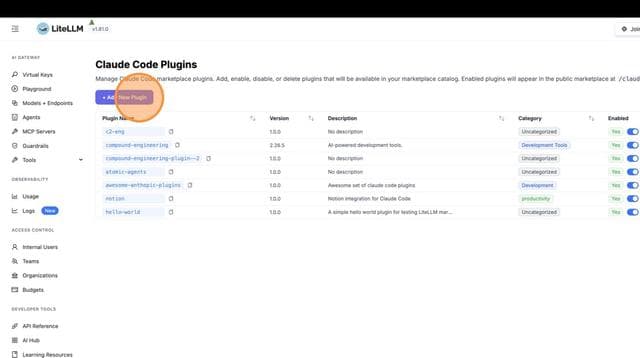
Step 2: View the Plugins List
You'll see the list of all registered plugins. From here you can add, enable, disable, or delete plugins.
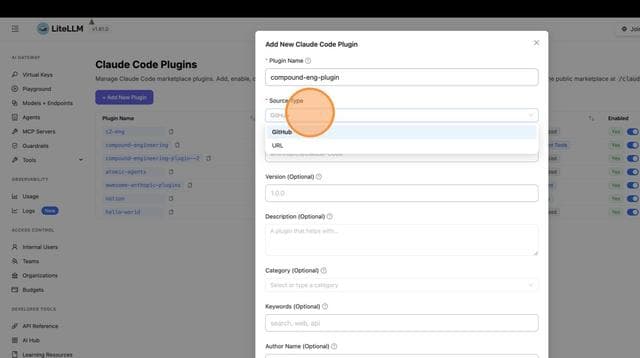
Step 3: Add a New Plugin
Click + Add Skill to register a plugin in your marketplace.
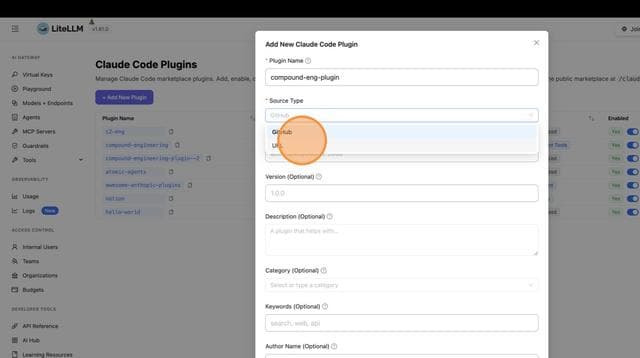
Step 4: Fill in Plugin Details
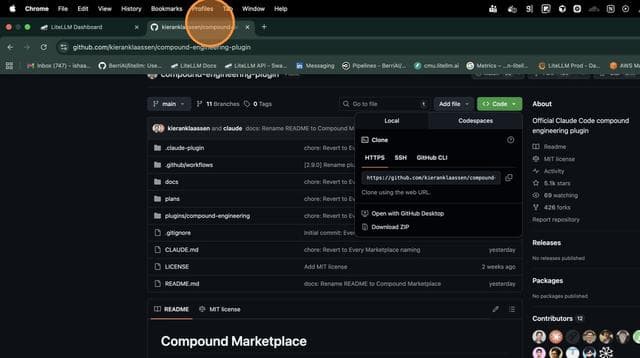
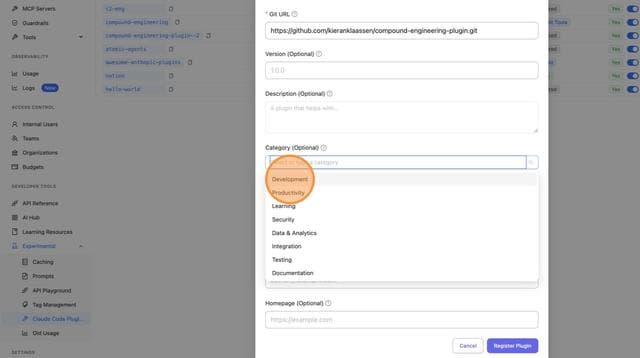
Paste the source URL first. It can be a GitHub URL, a git clone URL over HTTPS or SSH, a tree/<branch>/<path> link to a subdirectory, or an HTTPS link to a zip file. LiteLLM detects the source type and suggests a name. Then fill in the name (kebab-case, e.g. my-plugin) and any optional fields: domain, namespace, description, category, keywords, version, and author.
Step 5: Submit the Plugin
After filling in the details, click Add Skill to register it.
Step 6: Enable/Disable Plugins
New plugins are enabled as soon as they are added. Toggle plugins on or off to control what appears in the public marketplace. Enabled plugins are visible to everyone. A disabled plugin is only visible to keys or teams granted it through Allowed Skills (object_permission.skills), as described in Private skills.
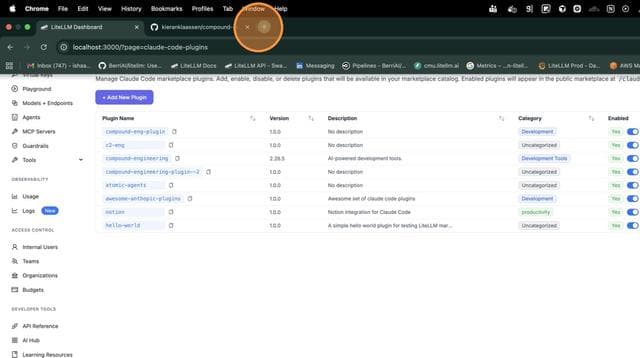
Engineer Guide: Installing Plugins
Step 1: Add the LiteLLM Marketplace
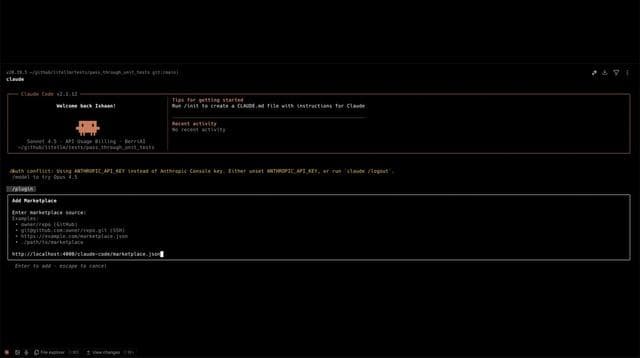
Add your company's LiteLLM marketplace to Claude Code:
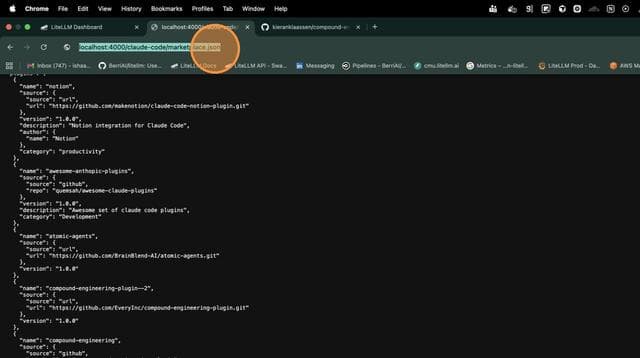
claude plugin marketplace add http://your-litellm-proxy:4000/claude-code/marketplace.json
If you were granted private plugins, add your key so they appear too:
claude plugin marketplace add "http://your-litellm-proxy:4000/claude-code/marketplace.json?key=sk-..."
Step 2: Browse Available Plugins
Run /plugin inside Claude Code to browse plugins from the litellm marketplace, or list them from the proxy:
curl http://your-litellm-proxy:4000/claude-code/marketplace.json
Step 3: Install a Plugin
Install any plugin from the marketplace:
claude plugin install my-plugin@litellm
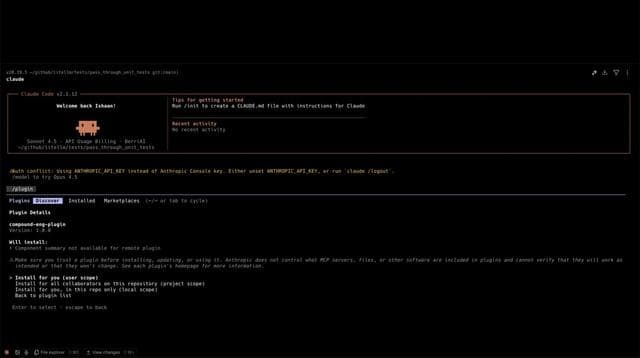
Step 4: Verify Installation
The plugin is now installed and ready to use:
API Reference
Public Endpoint (No Auth Required)
GET /claude-code/marketplace.json
Returns the marketplace catalog for Claude Code discovery. Without a key it lists enabled plugins. With ?key=sk-... it also lists the disabled plugins granted to that key or its team.
curl http://localhost:4000/claude-code/marketplace.json
Response:
{
  "name": "litellm",
  "owner": {
    "name": "LiteLLM",
    "email": "support@litellm.ai"
  },
  "plugins": [
    {
      "name": "my-plugin",
      "source": {
        "source": "github",
        "repo": "org/my-plugin"
      },
      "version": "1.0.0",
      "description": "My awesome plugin",
      "category": "productivity",
      "keywords": ["automation", "tools"]
    }
  ]
}
Management Endpoints (Auth Required)
Every write endpoint below requires a proxy admin key and rejects any other key with a 401 or 403. The read endpoints accept any key and only return plugins visible to it.
POST /claude-code/plugins
Register a new plugin. This only creates; a name that already exists returns 409.
curl -X POST http://localhost:4000/claude-code/plugins \
  -H "Authorization: Bearer sk-..." \
  -H "Content-Type: application/json" \
  -d '{
    "name": "my-plugin",
    "source": {"source": "github", "repo": "org/my-plugin"},
    "version": "1.0.0",
    "description": "My awesome plugin",
    "category": "productivity",
    "keywords": ["automation", "tools"]
  }'
installation_preference is optional and takes available, auto_install, or required. It needs an archive source, so adding it to the github example above returns 400. See Auto-install plugins in Claude Desktop.
GET /claude-code/plugins
List the plugins visible to the caller: everything for a proxy admin, otherwise enabled plugins plus the ones granted to the key. Add ?enabled_only=true to return only enabled plugins.
curl http://localhost:4000/claude-code/plugins \
  -H "Authorization: Bearer sk-..."
GET /claude-code/plugins/{name}
Get one plugin. Returns 403 for a disabled plugin that is not granted to the caller.
curl http://localhost:4000/claude-code/plugins/my-plugin \
  -H "Authorization: Bearer sk-..."
PUT /claude-code/plugins/{name}
Replace an existing plugin. The name comes from the path and cannot change. This is a full replace, so omitted fields reset to their defaults, and version and installation_preference are cleared if omitted.
curl -X PUT http://localhost:4000/claude-code/plugins/my-plugin \
  -H "Authorization: Bearer sk-..." \
  -H "Content-Type: application/json" \
  -d '{
    "source": {"source": "github", "repo": "org/my-plugin"},
    "version": "1.1.0",
    "description": "My awesome plugin, now with more tools",
    "category": "productivity",
    "keywords": ["automation", "tools"]
  }'
POST /claude-code/plugins/{name}/enable
Enable a plugin.
curl -X POST http://localhost:4000/claude-code/plugins/my-plugin/enable \
  -H "Authorization: Bearer sk-..."
POST /claude-code/plugins/{name}/disable
Disable a plugin.
curl -X POST http://localhost:4000/claude-code/plugins/my-plugin/disable \
  -H "Authorization: Bearer sk-..."
DELETE /claude-code/plugins/{name}
Delete a plugin.
curl -X DELETE http://localhost:4000/claude-code/plugins/my-plugin \
  -H "Authorization: Bearer sk-..."
Auto-install plugins in Claude Desktop
Available from v1.107.0.
Claude Desktop on third-party can install a plugin for every user without each one opting in, when your LiteLLM proxy is also its inference gateway. Set installation_preference on the plugin and LiteLLM serves it as installationPreference on that plugin's marketplace.json entry. The field is API only, since the Admin UI has no control for it yet. GET /claude-code/plugins, GET /claude-code/plugins/{name}, and GET /public/skill_hub return it as installation_preference. The sha256 must be the zip's 64-character hex SHA-256 digest. The digest below is only an example, so replace it with the output of shasum -a 256 my-plugin-1.0.0.zip. LiteLLM checks only that the digest is 64 hex characters, not that it matches the zip, and Anthropic's Claude Desktop extensions docs say Desktop installs nothing from a sync when any archive in it fails to download or fails its digest check, so one wrong digest blocks every auto-install from this marketplace:
curl -X POST http://localhost:4000/claude-code/plugins \
  -H "Authorization: Bearer sk-..." \
  -H "Content-Type: application/json" \
  -d '{
    "name": "my-plugin",
    "source": {
      "source": "archive",
      "url": "https://litellm.example.com/plugins/my-plugin-1.0.0.zip",
      "sha256": "e3b0c44298fc1c149afbf4c8996fb92427ae41e4649b934ca495991b7852b855"
    },
    "installation_preference": "auto_install"
  }'
The plugin's entry in marketplace.json then looks like this:
{
  "name": "my-plugin",
  "source": {
    "source": "archive",
    "url": "https://litellm.example.com/plugins/my-plugin-1.0.0.zip",
    "sha256": "e3b0c44298fc1c149afbf4c8996fb92427ae41e4649b934ca495991b7852b855"
  },
  "version": "1.0.0",
  "installationPreference": "auto_install"
}
Claude Desktop honors a per-plugin installationPreference only when marketplace.json is served from its inferenceGatewayBaseUrl or bootstrapUrl origin, and only for an archive source with a sha256 whose zip sits on that same origin. Per the same Anthropic docs, it does not list other source types from a marketplace.json URL at all, so LiteLLM answers 400 when installation_preference is set on a plugin that is not an archive source, or when auto_install or required is set on an archive without a sha256. LiteLLM does not check the archive's origin and does not serve plugin zips itself, so a path like /plugins/ in the example returns 404 until you route it to your own file server at your ingress, on the same origin as the proxy. LiteLLM also accepts the request key as installationPreference, the name Claude Desktop reads, and answers 422 when one request sends both spellings with values.
Claude Desktop 2.31226.1 treats a per-plugin required the same as auto_install. It installs the plugin on its own, but the user can still turn it off or remove it, and a removed plugin stays removed on the next sync. A whole-marketplace required setting in Claude Desktop is the one that stops users from removing plugins.
Claude Desktop sends the marketplace URL without ?key=, and LiteLLM does not read the bearer token Desktop sends with it, so Desktop sees only enabled plugins. Enable an auto-install plugin instead of granting it to a key or team. Enabling makes the plugin public, so its name, description, archive URL, and sha256 show up without auth in marketplace.json and GET /public/skill_hub. In Claude Desktop's own marketplace configuration, leave the entry's installationPreference at available and let the per-plugin values decide. See Per-plugin auto-install from a trusted origin for the Desktop side of the setup.
Claude Code 2.1.119 and earlier reject a marketplace.json that lists any archive plugin, so claude plugin marketplace add and claude plugin marketplace update fail for every plugin in it. Releases 2.1.120 through 2.1.223 add the marketplace but fail claude plugin install on an archive plugin. Claude Code 2.1.224 is the first release that installs archive plugins, per the plugin marketplace reference. LiteLLM serves installationPreference only on archive plugins, so the field adds no new break. Upgrade every Claude Code user of this marketplace to 2.1.224 or later before you add an archive plugin. Claude Code ignores installationPreference, so those users still install the plugin with /plugin install.
Plugin Source Formats
- GitHub
- Git URL
- Git Subdir
- Zip Archive
{
  "name": "my-plugin",
  "source": {
    "source": "github",
    "repo": "organization/repository"
  }
}
{
  "name": "my-plugin",
  "source": {
    "source": "url",
    "url": "https://github.com/org/repo.git"
  }
}
Use this format for GitLab, Bitbucket, or self-hosted git repositories.
{
  "name": "my-plugin",
  "source": {
    "source": "git-subdir",
    "url": "https://github.com/org/repo.git",
    "path": "plugins/my-plugin"
  }
}
Use this format when your plugin lives in a subdirectory of a git repository. The path field must be a relative path of slash-separated segments (alphanumeric, dots, hyphens, underscores only).
{
  "name": "my-plugin",
  "source": {
    "source": "archive",
    "url": "https://bucket.s3.amazonaws.com/plugins/my-plugin.zip",
    "sha256": "<optional 64-character hex digest>"
  }
}
Use this format for a plugin packaged as a zip file on any HTTPS host, such as S3. The url must use HTTPS, and sha256, when set, must be a 64-character hex digest of the archive.
Example: Setting Up an Internal Plugin Marketplace
1. Create Internal Plugins
Structure your plugin repository:
my-company-plugin/
├── plugin.json          # Plugin manifest
├── SKILL.md            # Main skill file
├── skills/             # Additional skills
│   └── helper.md
└── README.md
2. Register Plugins via API
# Register your internal tools plugin
curl -X POST http://localhost:4000/claude-code/plugins \
  -H "Authorization: Bearer $LITELLM_MASTER_KEY" \
  -H "Content-Type: application/json" \
  -d '{
    "name": "internal-tools",
    "source": {"source": "github", "repo": "mycompany/internal-tools"},
    "version": "1.0.0",
    "description": "Internal development tools and utilities",
    "author": {"name": "Platform Team", "email": "platform@mycompany.com"},
    "category": "internal",
    "keywords": ["internal", "tools", "utilities"]
  }'
3. Use in Claude Code
Send engineers the marketplace URL:
# One-time setup for each engineer
claude plugin marketplace add http://litellm.internal.company.com/claude-code/marketplace.json

# Install company plugins
claude plugin install internal-tools@litellm
Troubleshooting
Plugin not appearing in marketplace:
- Verify the plugin is enabled in the admin UI, or that it is granted to your key and you added the marketplace with
?key= - Run
claude plugin marketplace update litellmto refresh the local copy of the catalog
Installation fails:
- Ensure the git repository is accessible from the engineer's machine
- For private repos, engineers need appropriate git credentials configured
- For
git-subdirsources, check thatpathmatches the skill's directory in the repository; Claude Code reportsSubdirectory '<path>' not foundotherwise
Database errors:
- Verify LiteLLM proxy is connected to the database
- Check proxy logs for detailed error messages