Getting Started with UI Logs
View Spend, Token Usage, Key, Team Name for Each Request to LiteLLM
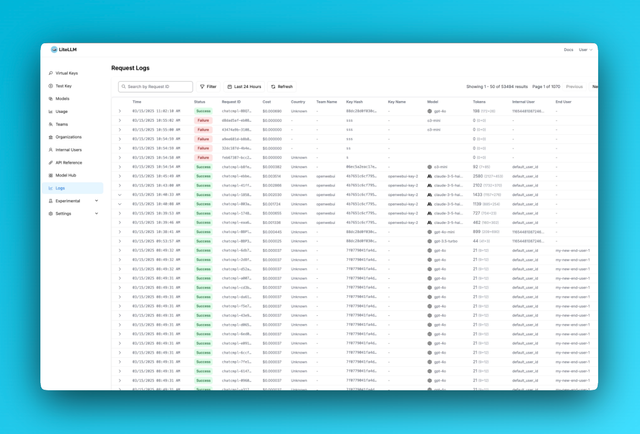
Overview
| Log Type | Tracked by Default |
|---|---|
| Success Logs | ✅ Yes |
| Error Logs | ✅ Yes |
| Request/Response Content Stored | ❌ No by Default, opt in with store_prompts_in_spend_logs |
By default LiteLLM does not track the request and response content.
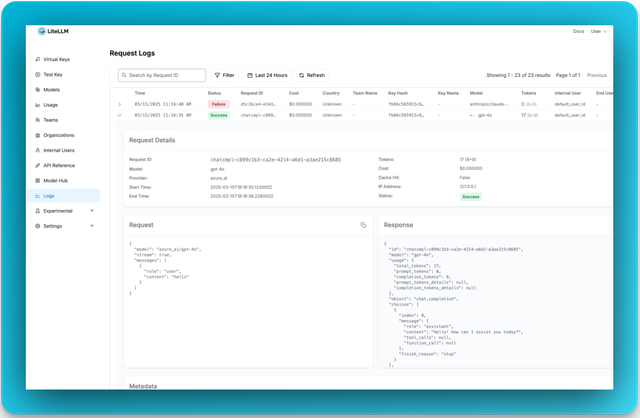
Tracking - Request / Response Content in Logs Page
If you want to view request and response content on LiteLLM Logs, you can enable it in either place:
- From the UI (no restart): Use UI Spend Log Settings — open Logs → Settings → enable "Store Prompts in Spend Logs" → Save. Takes effect immediately and overrides config.
- From config: Add this to your
proxy_config.yaml(requires restart):
general_settings:
  store_prompts_in_spend_logs: true
Tracing Tools
View which tools were provided and called in your completion requests.

Example: Make a completion request with tools:
curl -X POST 'http://localhost:4000/chat/completions' \
  -H 'Authorization: Bearer sk-1234' \
  -H 'Content-Type: application/json' \
  -d '{
    "model": "gpt-4",
    "messages": [{"role": "user", "content": "What is the weather?"}],
    "tools": [
      {
        "type": "function",
        "function": {
          "name": "get_weather",
          "description": "Get the current weather",
          "parameters": {
            "type": "object",
            "properties": {
              "location": {"type": "string"}
            }
          }
        }
      }
    ]
  }'
Check the Logs page to see all tools provided and which ones were called.
Stop storing Error Logs in DB
If you do not want to store error logs in DB, you can opt out with this setting
general_settings:
  disable_error_logs: True   # Only disable writing error logs to DB, regular spend logs will still be written unless `disable_spend_logs: True`
Stop storing Spend Logs in DB
If you do not want to store spend logs in DB, you can opt out with this setting
general_settings:
  disable_spend_logs: True   # Disable writing spend logs to DB
Automatically Deleting Old Spend Logs
If you're storing spend logs, it might be a good idea to delete them regularly to keep the database fast.
You can set the retention period in either place:
- From the UI (no restart): UI Spend Log Settings — Logs → Settings → set Retention Period → Save.
- From config: Add the following to your
proxy_config.yaml(requires restart):
general_settings:
  maximum_spend_logs_retention_period: "7d"  # Delete logs older than 7 days

  # Optional: how often to run cleanup
  maximum_spend_logs_retention_interval: "1d"  # Run once per day
You can control how many logs are deleted per run using this environment variable:
SPEND_LOG_RUN_LOOPS=200 # Deletes up to 200,000 logs in one run
Set SPEND_LOG_CLEANUP_BATCH_SIZE to control how many logs are deleted per batch (default 1000).
For detailed architecture and how it works, see Spend Logs Deletion.
What gets logged?
Here's a schema breakdown of what gets logged.